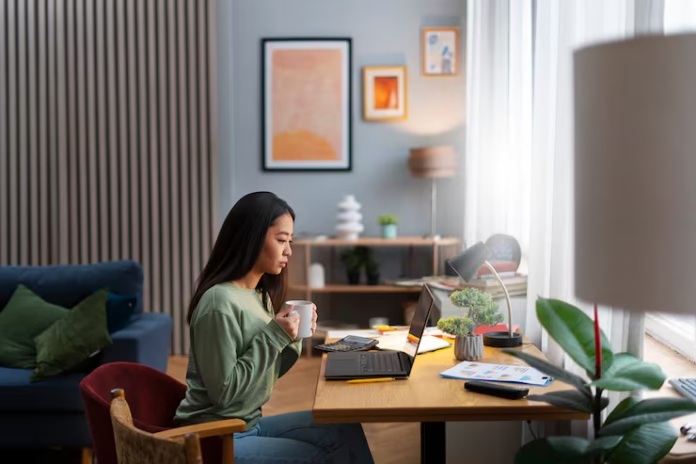

Let’s be real — working from home sounds great until you’re hunched over your laptop at the kitchen table for 8 hours straight, trying not to spill coffee on your taxes . Having a functional home office can seriously change your whole vibe. Productivity goes up, back pain goes down, and honestly… it just feels nice to have your own little work zone.
But designing a home office isn’t just about buying a fancy chair or slapping a desk against the wall. It’s about making a space that actually works for you. Here’s how to do it (without making it all complicated or crazy expensive).
1. Choose the Right Spot (Not Just Any Spot)
First things first — pick your space wisely. If you have a spare room, awesome. If not, that’s okay. Just don’t pick the noisiest, darkest corner of your house and expect magic.
Look for:
-
Natural light (makes a big difference for mood & focus)
-
Somewhere you can focus without too many distractions (sorry, not next to the TV)
-
A place with at least enough room for a desk + chair, and ideally a little breathing space
⚠️ Tip: If your “office” has to share space (like in the bedroom or living room), use rugs, curtains, bookshelves etc. to kinda “zone” it off visually.
2. Get a Real Desk (Not the Dining Table)
Look, we all used the kitchen table during peak 2020 lockdowns, but now it’s time for an actual desk. It doesn’t have to be fancy, just functional.
Choose something:
-
With enough surface space for your laptop + mouse + maybe a notebook or two
-
That fits YOUR workflow (do you need drawers? a dual-monitor setup? space for sketching?)
And if you’re working with tiny space, a wall-mounted desk or even a fold-down one can totally work. Just don’t use an ironing board. Ever. Please.
3. Invest in a Good Chair (Your Back Will Thank You)
This part matters way more than people think. A bad chair = neck pain, back pain, and bad moods. You don’t have to drop $800, but don’t use a stool or folding chair unless you want chiropractor bills later.
✅ Look for:
-
Adjustable height
-
Back support (lumbar = key)
-
Something comfy but not so soft that you fall asleep
Even an office chair from IKEA or Amazon can do the job if it supports you right. Also, posture check rn — you’re slouching, aren’t you?
4. Lighting: Don’t Just Rely on That Sad Ceiling Light
Bad lighting = eye strain + headaches + you looking like a crypt keeper on Zoom.
Tips:
-
Use natural light when you can (next to a window = best case)
-
Add a desk lamp (warm light is better than harsh cold light)
-
If you’re on a lot of video calls, add a ring light or lamp behind your screen to balance the light on your face
Bonus: Light makes you want to be in the space. Dark corners make you want to nap.
5. Keep It Organized (At Least… Kinda)
You don’t have to be all Marie Kondo, but some kinda system helps. Cluttered desk = cluttered brain, or at least that’s what they say (and it kinda feels true tbh).
️ Try:
-
A small drawer unit or file box for paperwork
-
A tray or cup for pens/stuff you use daily
-
Cable clips or a little cord organizer so you’re not constantly untangling charger wires
And yes, clean your desk sometimes. At least like once a week. Maybe every 2 weeks. Okay once a month, but still.
6. Personalize Your Space (So You Wanna Be There)
Your home office shouldn’t feel like a prison cell. Add stuff that makes you feel good.
Ideas:
-
Plants (even fake ones — we’re not judging)
-
A corkboard or whiteboard for to-dos & inspo
-
Some art or prints you like
-
A candle, a comfy throw, whatever gives you the vibes
BUT don’t overload it with decor. Keep your space functional first. No point having 12 cute things on your desk if there’s no room for your laptop
7. Think About Tech Setup (Not Just “Does the WiFi Work”)
It’s not just about the laptop anymore. If you’re working full time from home, your setup matters.
Check:
-
Do you need a monitor? (Way easier on your eyes than a laptop screen)
-
Do you have enough plugs nearby? Maybe get a surge protector w/ USB slots
-
Headphones w/ mic for Zooms
-
Keyboard & mouse (so you’re not crunched over a laptop 24/7)
Also — get a webcam cover if you’re paranoid like me lol. Just in case.
8. Set Boundaries (Physical AND Mental)
This one’s more mindset, but important. If you work where you relax, the lines blur fast.
Tips:
-
Try to “enter” and “exit” work mode — like lighting a candle when you start and blowing it out when you’re done
-
Use different playlists for work vs. chill
-
If your office is in your bedroom, face the desk away from the bed if possible (no staring contests during meetings)
Also, remind your family/roommates/kids that “working from home” doesn’t mean “available 24/7 to find the remote.”
9. Make It Flexible (Life Happens)
Some days you’re deep in spreadsheets, other days it’s Zoom calls all morning. Your space should adjust with you.
Try:
-
A small side table that you can move around
-
A lap desk for couch work days
-
A rolling chair or standing desk converter if you get fidgety (same lol)
Design your space to support how YOU work. Not how a TikTok influencer said you “should.”
Final Thoughts
Designing a functional home office isn’t about being fancy or Insta-perfect. It’s about making a space that helps you focus, feel good, and not hate life halfway through your workday.
Start with what you’ve got, upgrade what you can, and make it yours. Even if it’s just a corner of the room — it can still be a space that works for you (and your posture ).
And hey, if it still feels off… maybe just get another plant. That usually helps